Add Velo to
Drupal.
Install the Velo cookie banner and Google Consent Mode v2 on Drupal in minutes. The recommended path is one tag imported into Google Tag Manager; one line in your theme works just as well.
Two ways in.
Pick one.
The recommended install: one community template imported into your container. It sets the Consent Mode v2 default before any other tag fires, then loads the banner. Prefer code? Jump to the one line install.
Install through
Google Tag Manager.
One tag, no code on the page, and your whole measurement stack stays in one place. No Tag Manager yet? The Google Tag module installs the container cleanly from your Drupal admin, then start here.
Import the Velo CMP template
Download template.tpl from github.com/ampliodata/velo-cmp. In your container, open Templates → Tag Templates → New, then open the ⋮ menu at the top right of the editor and choose Import. Pick the file you just downloaded, save, and the Velo CMP tag is ready to configure. Velo CMP is awaiting its listing in Google’s Community Template Gallery — until it lands, importing the file is the way in, and the tag behaves identically.
Create the tag
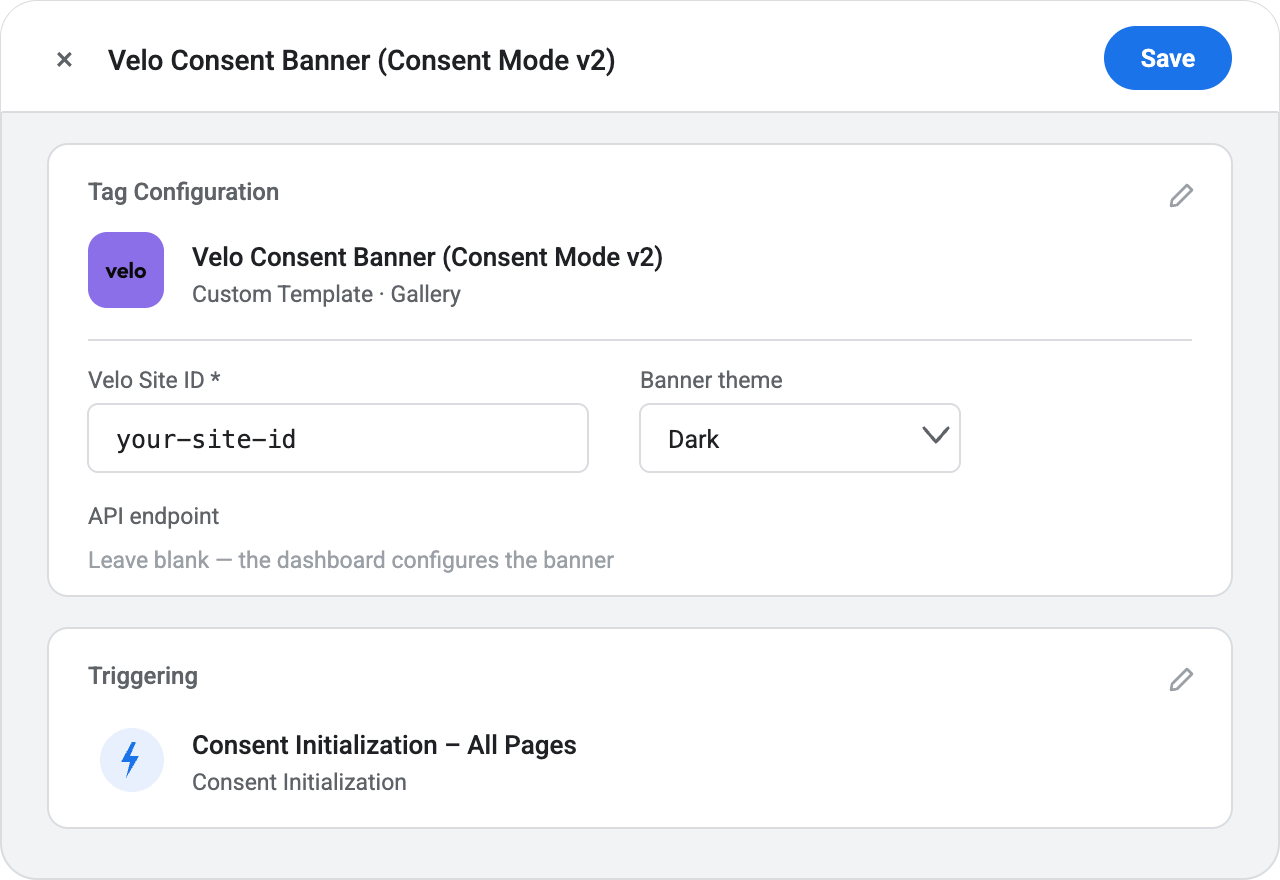
Go to Tags → New and choose the Velo template. Enter your Velo site ID — lowercase letters, digits and dashes, exactly as the dashboard shows it — and pick the light or dark theme to match your site. Leave the API endpoint blank unless Velo issued one for your account: the banner and Consent Mode work fully without it, and when it is set the dashboard's remote configuration takes over copy and categories.
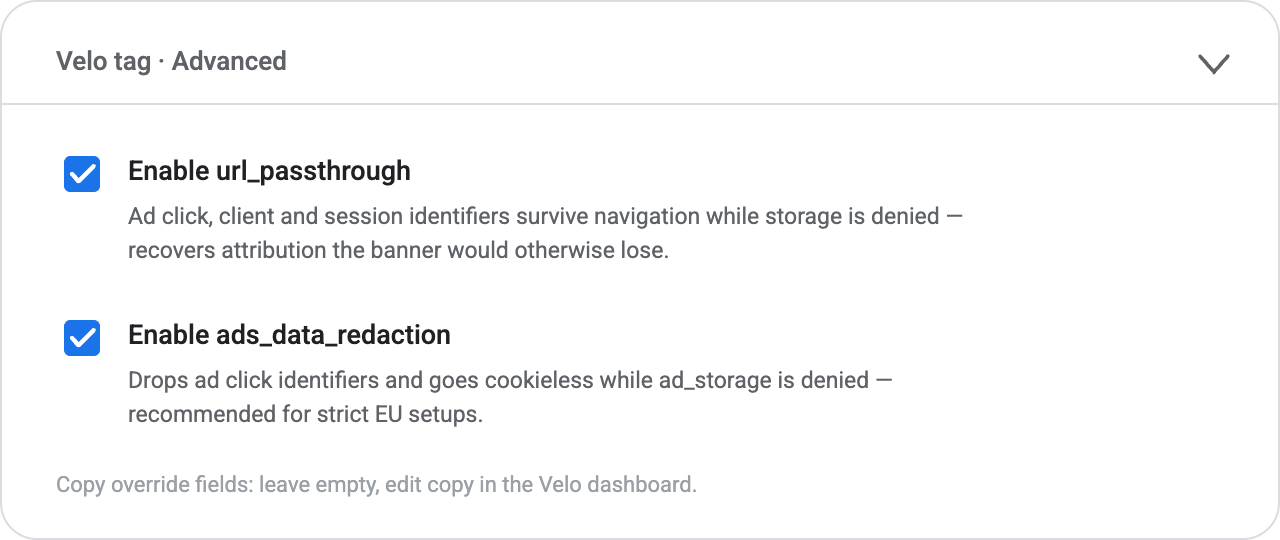
Tick the two recovery options
Under Advanced, two checkboxes are worth switching on. url_passthrough lets ad click, client and session identifiers survive navigation through URL parameters while storage consent is denied — it recovers attribution for the traffic your banner would otherwise lose. ads_data_redaction additionally drops ad click identifiers and goes cookieless on requests while ad_storage is denied — recommended for strict EU setups. The copy override fields can stay empty; prefer editing copy in the Velo dashboard.
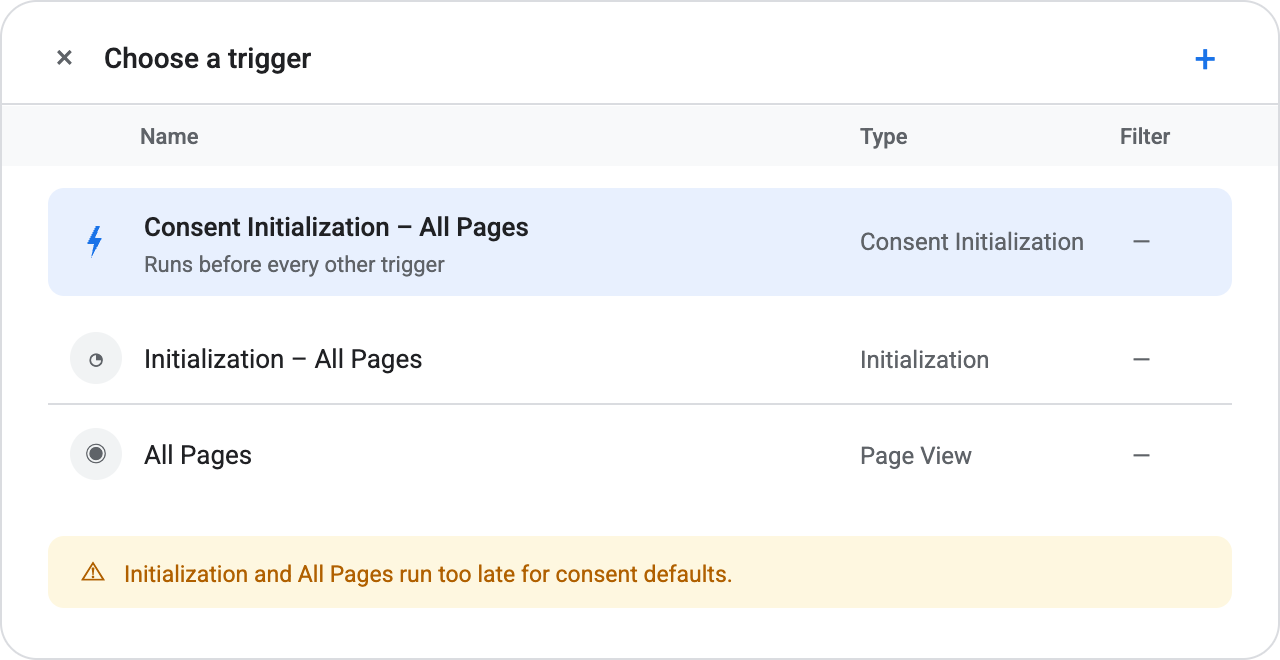
Fire it on Consent Initialization – All Pages
This is the trigger Google provides specifically for consent defaults: it runs before every other trigger in the container, which is what guarantees the denied default is in place before any measurement tag can fire. Do not use Initialization or All Pages — both run too late. This one choice is most of what a correct consent install comes down to.
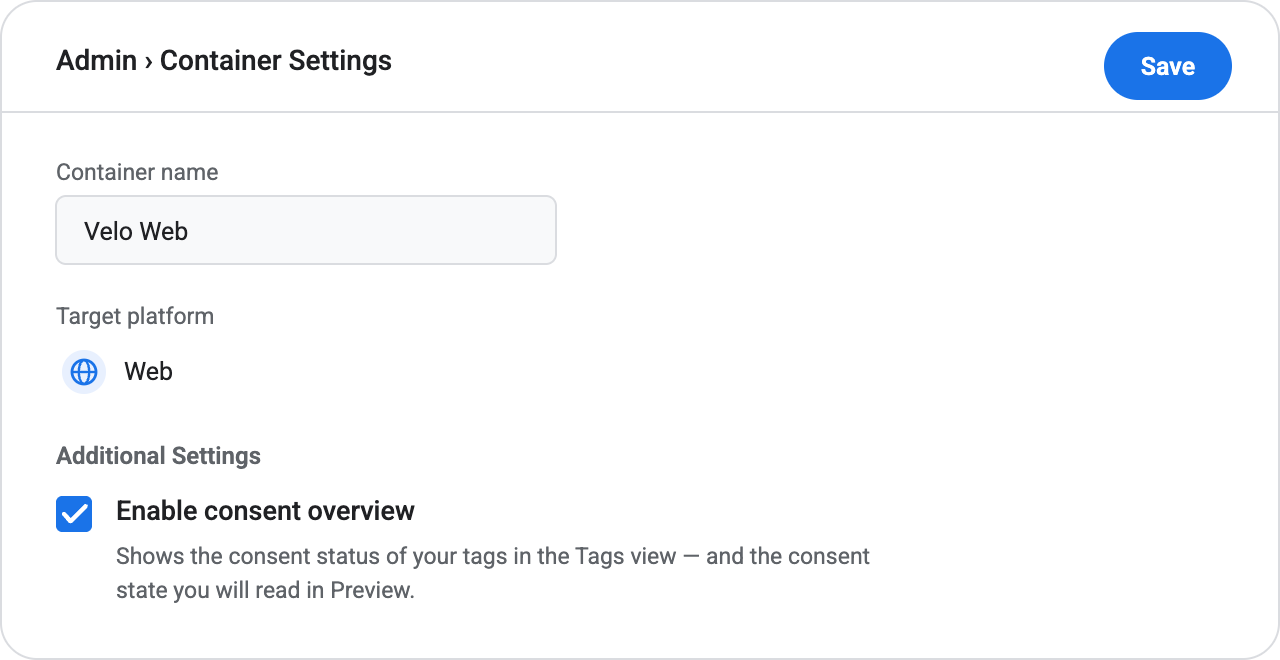
Turn on consent overview under Admin
In Admin → Container Settings, tick Enable consent overview. This switches the container’s consent features on: the shield icon in the Tags view that shows each tag’s consent status, and the consent state readings you are about to check in Preview. Do it before you open Preview — without it, GTM gives you no consent overview to debug against.
Preview, then publish
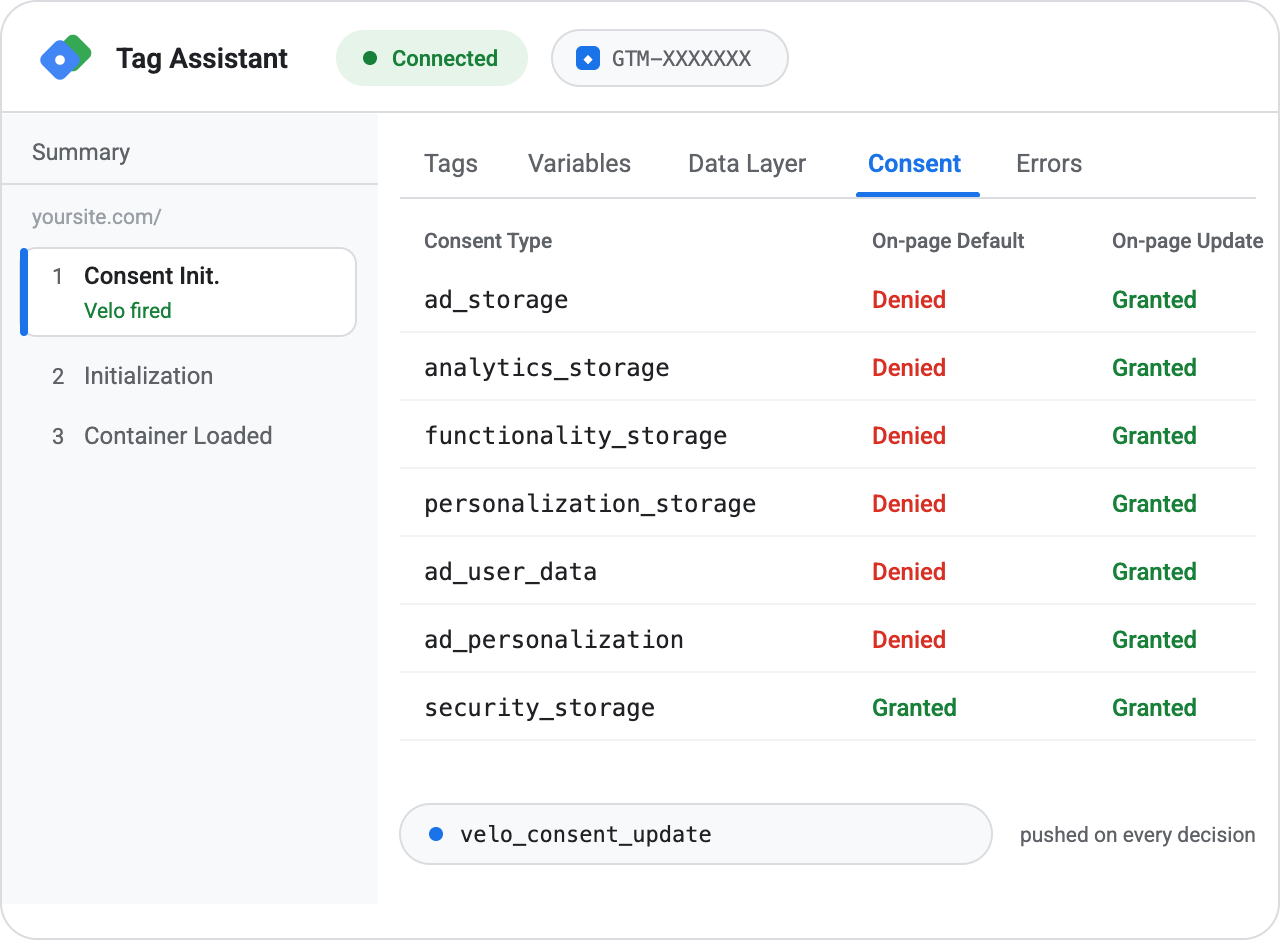
In Preview, check three things: the Velo tag fired on Consent Initialization before every other tag; the Consent tab in Tag Assistant shows every signal except security_storage denied by default from an EEA, UK or Swiss location; and accepting or declining in the banner flips the matching update row while a velo_consent_update event lands in the data layer. Then Submit → Publish. The banner is live on the next page load, and the Velo console flips to installed on its own when the first real signal arrives.
Paste one
line of code.
A direct install behaves identically to the Tag Manager install — same banner, same Consent Mode wiring, same audit log. Use whichever fits how your Drupal site is managed.
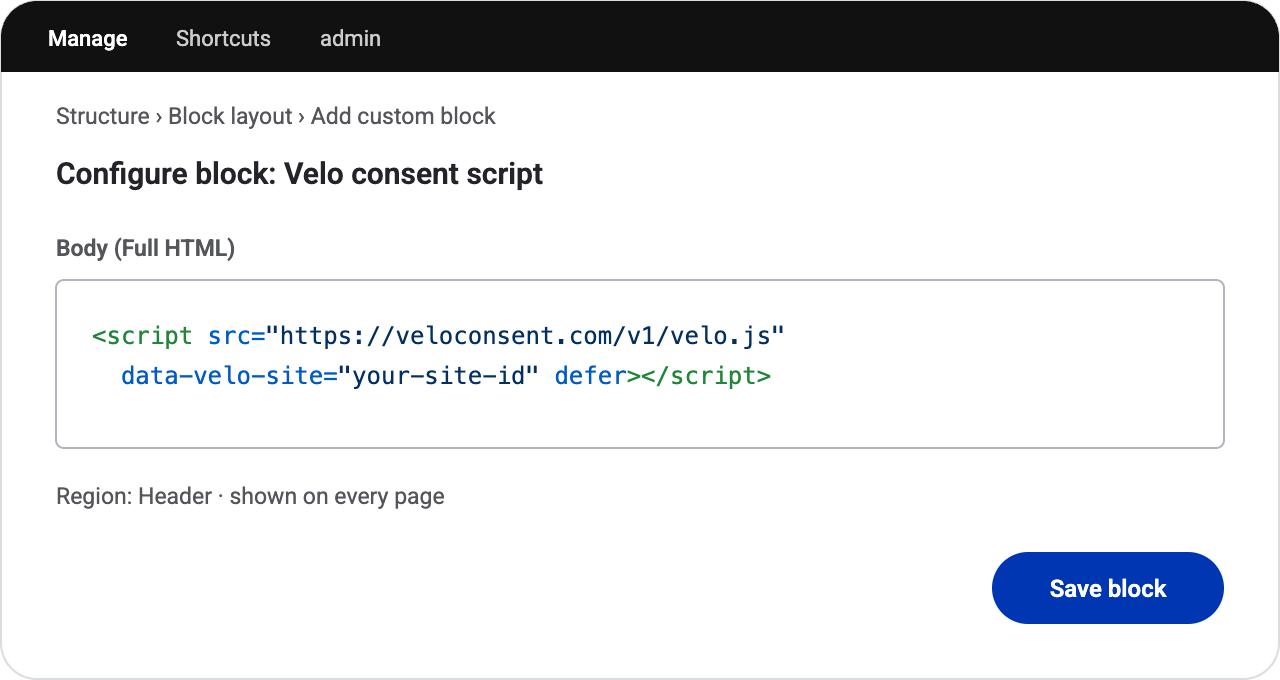
One line, before your analytics and advertising tags. It loads without blocking your page and sets the Consent Mode default first. Your site ID is in the Velo dashboard.
Add the tag to your theme
Paste the snippet before </head> in your theme’s html.html.twig, or use the Asset Injector module if you prefer staying out of the theme. Clear caches after either.
Clear caches and reload
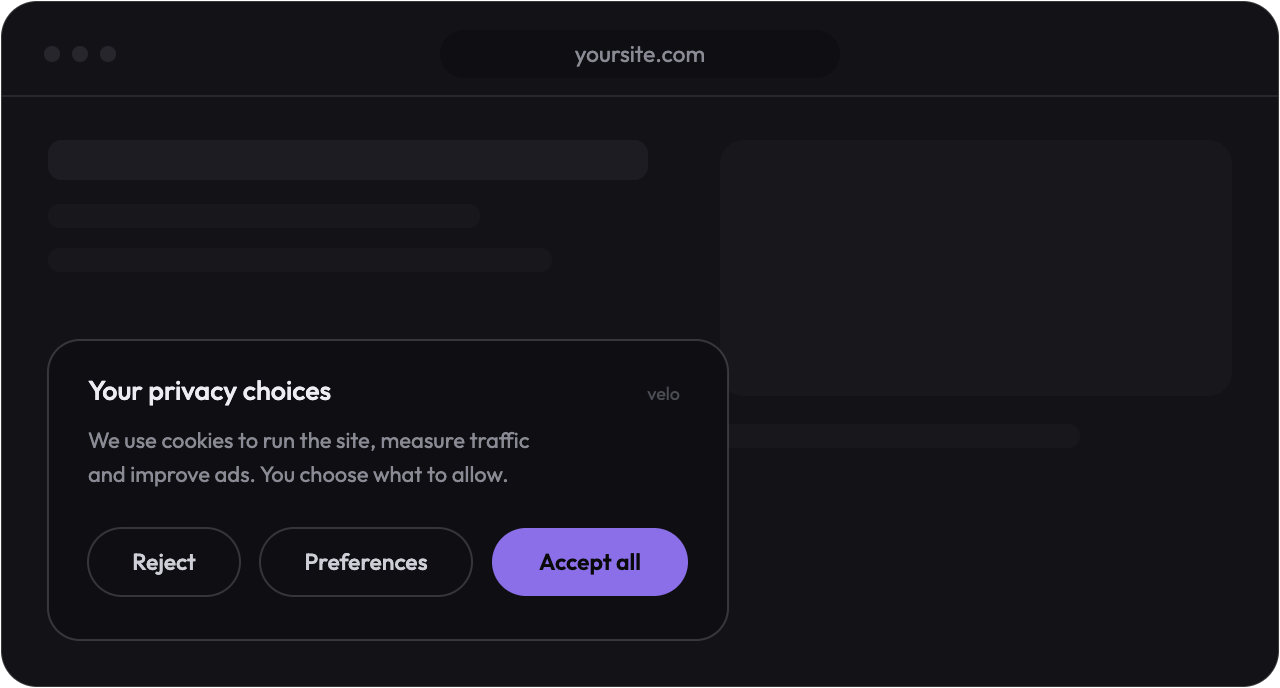
Drupal caches rendered pages aggressively, so flush caches once. The banner then renders on every page with the Consent Mode default set before any other tag can fire — the snippet is static, so page caching stays effective.
Then verify
from real traffic.
Whichever method you choose, the Velo console polls for the first real signal from your site — the banner loading or a decision being recorded — and flips to installed the moment one arrives. Then run the scan and set your regions.
Drupal questions,
answered.
Which Drupal versions does this cover?
The steps are written for Drupal 10 and 11 and work the same on 9. Velo is one script tag with no module dependency, so core and contrib updates never touch it.
Do I need a dedicated module?
No. A theme template or Asset Injector both work, and the Tag Manager route needs no code at all. If you already run the EU Cookie Compliance module, disable it so only one consent layer is active.
Will Drupal’s caching break it?
No. The snippet is identical for every visitor, so page cache and CDN cache both keep working. Region resolution and the consent decision happen in the visitor’s browser and at the edge, not in Drupal.
Will it slow the site down?
No. The script loads deferred, never blocks rendering, and the visitor's region is resolved at the nearest edge before the page finishes painting. The banner itself is a few kilobytes of static code.
Can an AI assistant do this for me?
Yes. Copy the prompt in Install with agents, just below, into Claude, ChatGPT, Cursor or whichever assistant you already use. It carries the steps on this page, the order the tags have to load in, and the checks the agent has to run before it tells you the job is done.
Or hand it
to an agent.
Copy the prompt below into Claude, ChatGPT, Cursor or whichever assistant you already use. It carries everything on this page — the Tag Manager route, the Drupal route, the order the tags have to load in, and the checks that prove it worked — so the agent can do the install with you and tell you exactly what it changed.
# Install Velo on Drupal — cookie banner + Google Consent Mode v2

You are installing Velo, a consent management platform, on my Drupal
site. Velo shows the cookie banner, sets the Google Consent Mode v2
defaults before any other tag can fire, and records every decision.

Ask me for these before you touch anything:

- My Velo site id — it is in the Velo dashboard. No account yet? Send me
  to https://veloconsent.com/get-started and wait for the id.
- Whether the site already runs Google Tag Manager, and which container.
- Which cookie banner or consent tool is live on the site today.

## Path A — through Google Tag Manager (preferred when GTM is live)

1. Templates → Tag Templates → New, then ⋮ → Import. Import the
   template.tpl from github.com/ampliodata/velo-cmp ("Velo CMP").
2. Create a tag from that template. Set my Velo site id and pick the
   light or dark theme.
3. Fire it on the "Consent Initialization – All Pages" trigger. Not
   Initialization, not All Pages — both run too late to set consent
   defaults.
4. Preview, check the Consent tab in Tag Assistant, then Submit and
   Publish.

No container yet? On Drupal, install the Google Tag module
(drupal.org/project/google_tag) from Extend and add the container id
under Configuration.

## Path B — the snippet, straight into the site

Put this line in the <head>, above every analytics and advertising tag:

  <script src="https://veloconsent.com/v1/velo.js"
    data-velo-site="MY_SITE_ID" defer></script>

On Drupal: paste the snippet before </head> in the theme's
html.html.twig, or use the Asset Injector module to stay out of the
theme. Clear caches either way.

## Rules

- One path, never both. Two installs means two banners.
- Velo loads first. Everything that measures or advertises comes after.
- Only one tool may set Consent Mode defaults. If another consent module
  is enabled, disable it before Velo goes live. Leave no hard coded
  gtag('consent', 'default', ...) anywhere else either.
- Change nothing beyond what this install needs. Tell me first if a theme
  file, plugin or existing tag has to be touched.

## Verify, then report back

- The banner renders on a fresh load in a private window.
- Before I choose, every consent signal except security_storage is denied
  from an EEA, UK or Swiss location.
- Accepting and rejecting each flip the matching signals, and a
  velo_consent_update event lands in the data layer.
- Google tags stay in their cookieless mode until consent is granted, and
  any tag gated by hand fires only after it.
- window.Velo is defined, and Velo.open() reopens the preferences panel.
- On a Tag Manager install, Tag Assistant shows the Velo tag firing on
  Consent Initialization ahead of every other tag.

Tell me what you changed, where you changed it, and what each check
showed. If a check fails, fix it and run the checks again.

Full guide: https://veloconsent.com/drupal
More context for agents: https://veloconsent.com/llms.txt
Working with an agent that reads the web? Point it at veloconsent.com/llms.txt and /install.md for the same context in plain text.
Compliant on Drupal.
Signal recovered.
The banner, the regions, the audit log and Consent Mode v2,
working together on your Drupal site, live in minutes.